the procedure of using computer equipment

DOCX 20 стр. 1,6 МБ Бесплатная загрузка

Предварительный просмотр (5 стр.)

Прокрутите вниз 👇
1 / 20
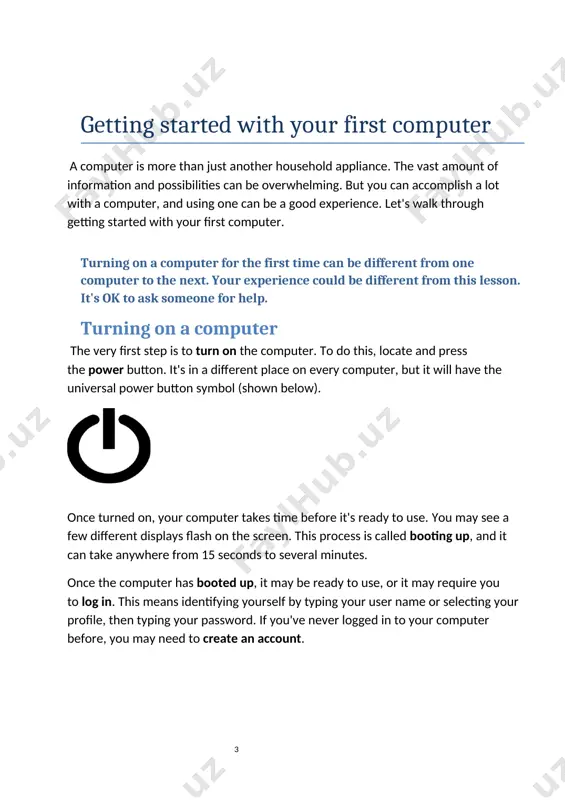
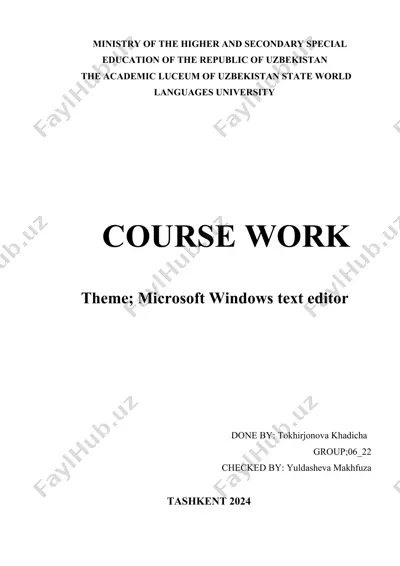
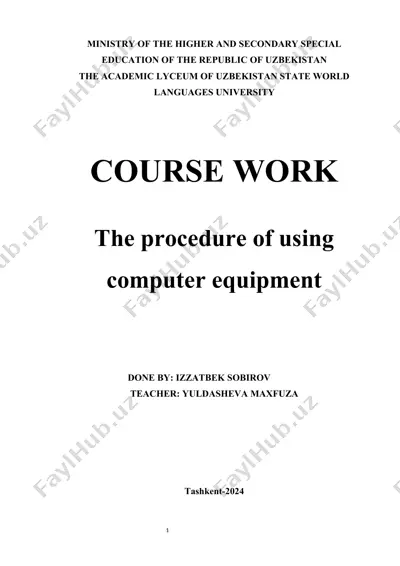
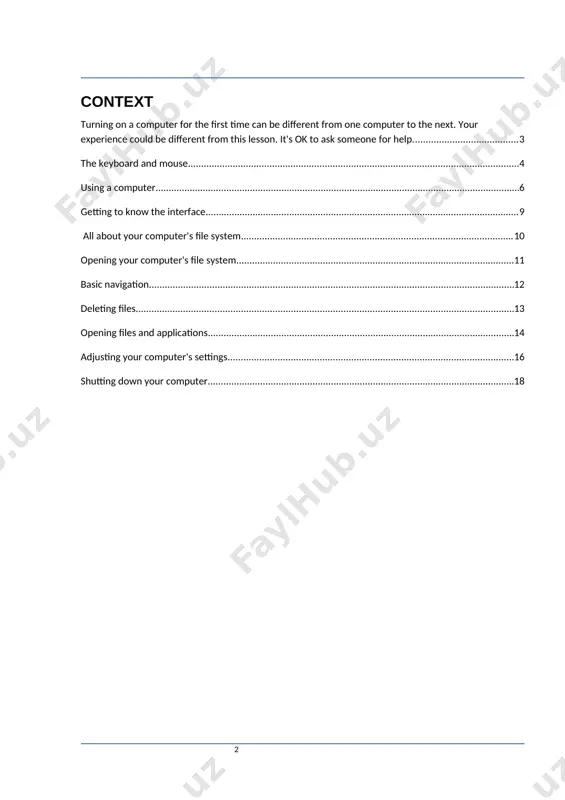
ministry of the higher and secondary special education of the republic of uzbekistan the academic lyceum of uzbekistan state world languages university course work the procedure of using computer equipment done by: izzatbek sobirov teacher: yuldasheva maxfuza tashkent-2024 context turning on a computer . 3 the keyboard and mouse 4 using a computer. 6 getting to know the interface 9 all about your computer's file system 10 opening your computer's file system 11 basic navigation 12 deleting files 13 opening files and applications 14 adjusting your computer's settings 16 shutting down your computer 18 getting started with your first computer a computer is more than just another household appliance. the vast amount of information and possibilities can be overwhelming. but you can accomplish a lot with a computer, and using one can be a good experience. let's walk through getting started with your first computer. turning on a computer for …
2 / 20
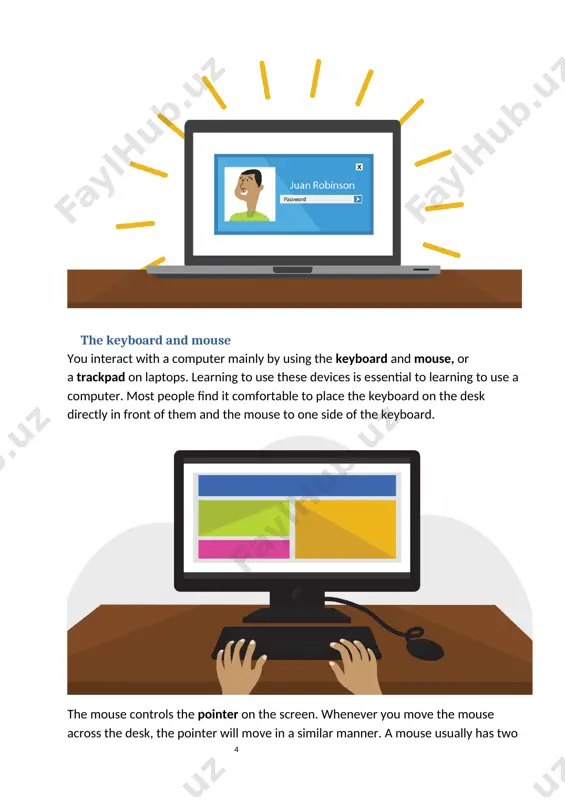
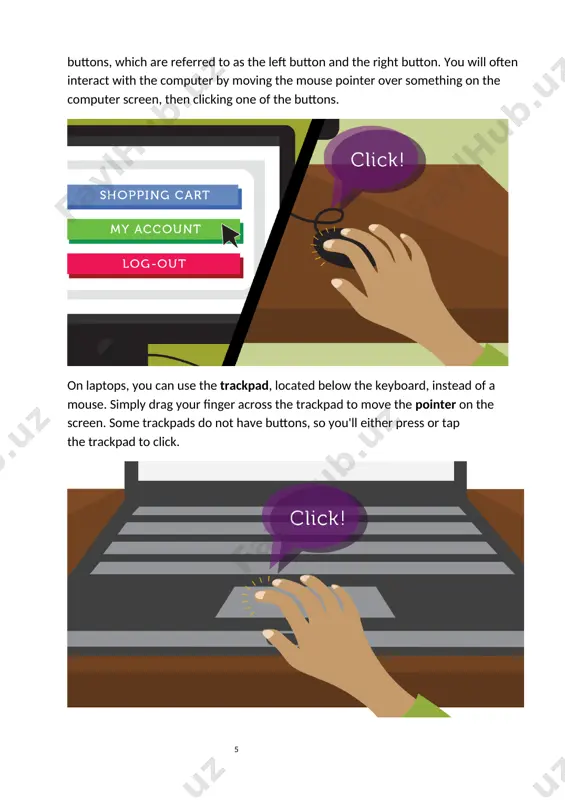
rning to use a computer. most people find it comfortable to place the keyboard on the desk directly in front of them and the mouse to one side of the keyboard. the mouse controls the pointer on the screen. whenever you move the mouse across the desk, the pointer will move in a similar manner. a mouse usually has two buttons, which are referred to as the left button and the right button. you will often interact with the computer by moving the mouse pointer over something on the computer screen, then clicking one of the buttons. on laptops, you can use the trackpad, located below the keyboard, instead of a mouse. simply drag your finger across the trackpad to move the pointer on the screen. some trackpads do not have buttons, so you'll either press or tap the trackpad to click. the keyboard allows you to type letters, numbers, …
3 / 20
ned area—like a picture within a picture—with its own menus and buttons specific to that program. you can rearrange multiple windows on the desktop and switch between them. what's next? ok, so these are just the basics of using a computer. in the next lesson, we'll talk about how to use your computer's specific operating system. getting to know your computer's os now that you know the absolute basics of using a computer, it's time to learn more about your computer's operating system. we'll be talking about the two most common operating systems in this lesson: microsoft windows and macos. getting to know the interface both pcs and macs use a graphical user interface (gui), and they each have their own look and feel. the interactives below will introduce you to the windows and mac interfaces. if you have difficulty seeing or hearing—or if you have trouble manipulating the mouse …
4 / 20
er icon looks like a face on the dock, as in the image below. in both operating systems, you can also open the file system by clicking a folder from your desktop. basic navigation whether you're using file explorer or finder, basic navigation will work the same way. if you see the file you want, you can double-click it with your mouse. otherwise, you can use the navigation pane on the left side of the window to select a different location. deleting files macos and windows use a trash can—or recycle bin—to prevent you from accidentally deleting files. when you delete a file, it is moved to the trash can. if you change your mind, you can move the file back to its original location. if you want to permanently delete the file, you will need to empty the trash or recycle bin. to do this, right-click the icon and …
5 / 20
sing a new computer, you may want to begin by adjusting the computer's settings. adjusting your settings can range from simple tasks such as changing your desktop background to more advanced tasks like adjusting your security or keyboard settings. · in windows 10, click the start button, then select settings. · in windows 8.1 and earlier, click the start button, then locate and select the control panel. check out the adjusting your settings lesson in our windows basics tutorial to learn more about the control panel. · on a mac, click the apple icon, then select system preferences. check out our adjusting your settings lesson in our macos basics tutorial to learn more about system preferences. shutting down your computer when you're done using your computer, it's important to shut it down properly. · to shut down windows, click the start button, then select shut down from the menu (in …

Хотите читать дальше?

Скачайте все 20 страниц бесплатно через Telegram.

Скачать полный файл

О "the procedure of using computer equipment"

ministry of the higher and secondary special education of the republic of uzbekistan the academic lyceum of uzbekistan state world languages university course work the procedure of using computer equipment done by: izzatbek sobirov teacher: yuldasheva maxfuza tashkent-2024 context turning on a computer . 3 the keyboard and mouse 4 using a computer. 6 getting to know the interface 9 all about your computer's file system 10 opening your computer's file system 11 basic navigation 12 deleting files 13 opening files and applications 14 adjusting your computer's settings 16 shutting down your computer 18 getting started with your first computer a computer is more than just another household appliance. the vast amount of information and possibilities can be overwhelming. but …

Этот файл содержит 20 стр. в формате DOCX (1,6 МБ). Чтобы скачать "the procedure of using computer equipment", нажмите кнопку Telegram слева.
Теги: the procedure of using computer… DOCX 20 стр. Бесплатная загрузка Telegram